Connect AI assistants (MCP)
Connect Claude Code, Cursor, and other MCP-aware tools with auto OAuth — no token copy-pasting.
OpenAPI Studio acts as a Model Context Protocol server. Any MCP-aware AI assistant — Claude Code, Cursor, Claude.ai, Claude Desktop, Windsurf, Zed, and others — can read your spec, look up operations, lint it, and run live API calls on your behalf using your stored workspace credentials.
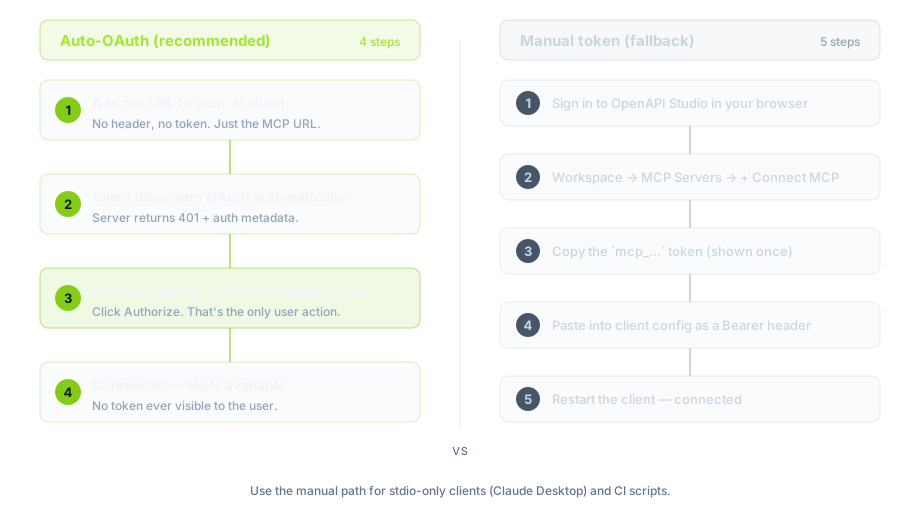
If your client supports OAuth (Claude Code, Cursor, Claude.ai), connecting takes about 20 seconds and you never see a token. For stdio-only clients (Claude Desktop), there’s a manual-token fallback at the bottom.
What you get
Once connected, the AI can:
- Browse your API catalog and answer questions like “what does
POST /v1/usersdo?” - Read full operation definitions with schemas resolved
- Lint your spec for missing summaries, examples, and security gaps
- Run live requests against your API and capture the response — using credentials already stored in your workspace
- Edit the spec — add operations, schemas, examples, security schemes
Connect with auto OAuth (recommended)
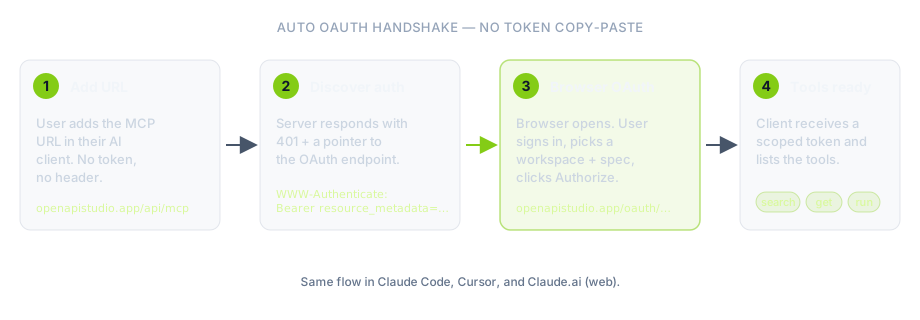
The MCP server URL is the same everywhere: https://openapistudio.app/api/mcp. Auto-OAuth clients only need the URL — they handle the auth handshake themselves. You’ll be redirected to OpenAPI Studio in a browser, pick the workspace and spec to share, and you’re done. No token to copy or store.
Claude Code
-
In your terminal, register the server:
claude mcp add openapi-studio --transport http https://openapistudio.app/api/mcp -
In a Claude Code session, run
/mcp. You’ll seeopenapi-studiolisted as not-yet-authenticated. -
Select it → Authenticate. Your browser opens to
openapistudio.app. Sign in if needed, pick the workspace and spec, then Authorize. -
The browser returns to Claude Code. Run
/mcpagain —openapi-studioshould now show a checkmark.
That’s it. The tools are now available in the chat. Try: “List the endpoints in my OpenAPI Studio spec.”
/mcp panel — the connected state shows a checkmark next to the server name.Cursor
-
Open Cursor Settings → MCP Servers → Add Server. (You can also edit
~/.cursor/mcp.jsondirectly.) -
Add this entry — note there is no
headersfield:{ "mcpServers": { "openapi-studio": { "url": "https://openapistudio.app/api/mcp" } } } -
Save. Cursor calls the URL, sees that authentication is required, and pops a browser window for the OAuth handshake. Sign in, pick the workspace and spec, Authorize.
-
Back in Cursor, the server entry shows green. Open a new chat and ask: “List the endpoints in my OpenAPI Studio spec.”
Claude.ai (web)
-
Settings → Connectors → Add custom connector.
-
Enter the URL
https://openapistudio.app/api/mcpand leave the auth field blank — Claude.ai uses OAuth when the server supports it. -
Click Connect. The OAuth flow opens; pick a workspace and spec; authorize.
-
The connector now appears in chat. Toggle it on for any conversation that should have OpenAPI Studio access.
The shared OAuth consent screen
Regardless of which client you start from, the OAuth handshake lands on the same OpenAPI Studio consent page where you pick a workspace and spec.
Kilo Code
Kilo Code is a VS Code–based AI coding agent. OpenAPI Studio is listed on the Kilo Marketplace — you can install it in one click from inside Kilo Code.
Option A — Install from Kilo Marketplace (recommended)
- Open the Kilo Code sidebar → Marketplace → MCP Servers.
- Search for OpenAPI Studio and click Install.
- Kilo Code opens your browser for the OAuth handshake. Sign in, pick a workspace and spec, then Authorize.
- The tools are available in your next agent session. Try: “List the endpoints in my OpenAPI Studio spec.”
Option B — Add URL manually
If you prefer manual setup, open Kilo Code Settings → MCP Servers and add:
{
  "openapi-studio": {
    "type": "streamable-http",
    "url": "https://openapistudio.app/api/mcp"
  }
}
Kilo Code will perform the OAuth handshake automatically on first use.
Other auto-OAuth clients
Any MCP client that supports HTTP transport with OAuth discovery (RFC 9728) works the same way: add the URL https://openapistudio.app/api/mcp with no auth header, and the client handles the rest. The server advertises its authorization endpoint via the standard WWW-Authenticate header, so compliant clients connect automatically.
Verifying the connection
In your AI client, ask:
“List the endpoints in my OpenAPI Studio spec.”
You should get back the operations from the spec you authorized. If you authorized with editor permission, also try:
“Run
GET /users/meagainst my spec’s default server.”
The response (and its full request/response history) will land in the spec’s execution history in OpenAPI Studio, the same place runs from the web editor appear.
What the AI can do — tool reference
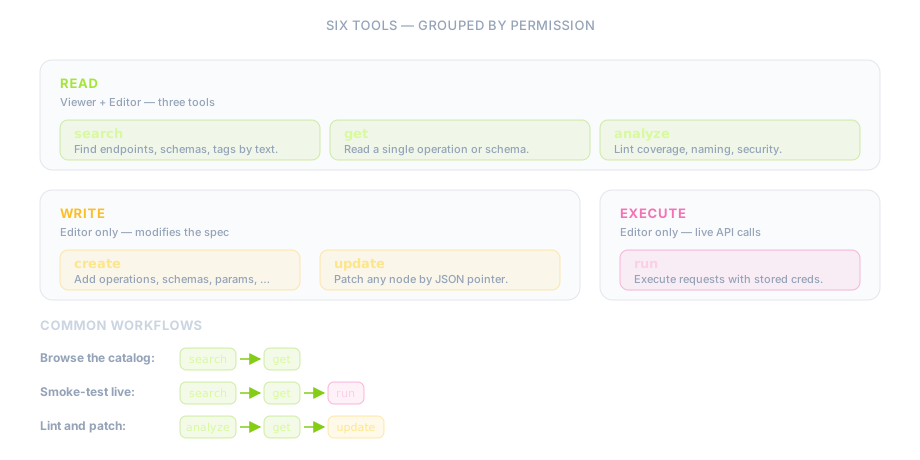
Read tools (viewer + editor)
-
search— find endpoints, schemas, or tags by free text. Filter by HTTP method, type, or tag.“Find all POST endpoints whose path mentions
webhook.” -
get— read the full definition of one operation, schema, or component. Optionally resolve$refpointers inline.“Show me
POST /auth/loginwith all schemas resolved.” -
analyze— lint the spec for coverage gaps (missing summaries, examples, operationIds), naming inconsistencies, security issues, and validation errors.“Run
analyzeand tell me which endpoints under/v2/billing/*are missing examples.”
Write tools (editor only)
-
create— add a new path, operation, schema, parameter, response, request body, security scheme, tag, or server.“Create a
Userschema withid,email, andcreatedAt.” -
update— patch any node by JSON pointer. Deep-merges by default; can replace.“Add a
descriptionto every operation under/v2/billing/*.”
Execute tool (editor only)
run— execute a live API call against the spec’s configured servers. Workspace credentials matching the spec’s security schemes (Bearer, Basic, API key in header/query) are applied automatically.“POST to
/auth/loginwith{ email, password }, then readaccess_tokenfrom the response.”
Each run request times out after 30 seconds. The full request and response are saved to your spec’s execution history.
Common workflows
Onboard to an unfamiliar API
“Use
searchto list every endpoint taggedOrders. For each one,getit and summarise the resource model — what’s required to create one, what’s read-only, what state transitions exist.”
Smoke-test an endpoint with real credentials
“Search for the login endpoint,
getit with refs resolved, thenrunit with the workspace credential. Capture the token from the response and use it torunGET /me.”
Lint and patch coverage gaps
“Run
analyzeon every operation under/v2/billing/*, thenupdateeach operation that’s missing a summary or examples.”
Permissions
During the OAuth handshake you choose two things: which spec the AI gets access to, and at what permission level:
- Viewer — read-only. Three tools:
search,get,analyze. Pick this when you only want the AI to answer questions about your API. - Editor — full access. All six tools, including
run(live API calls) and write tools. Pick this when you want the AI to actually exercise endpoints or edit the spec.
Permission can’t be elevated after the fact — re-authorize at a higher level (or generate a new token) if you need to switch.
Where to manage your MCP servers
Every token — whether created via OAuth or generated manually — lives in your workspace under MCP Servers, not in your account settings.
Token detail page
Click any row to open its detail page (/workspaces/<id>/mcp/<token-id>). This is where you see what the AI client is doing on your behalf and where you revoke access.
The detail page surfaces four stats at a glance:
- Total Requests — every MCP call this token has made.
- Last Used — relative time since the most recent call.
- Rate Limit — your plan’s per-5-minute ceiling for this token (see below).
- Expires — token expiry date, or “Never”.
It also lists the available tools (with permission badges), shows the breadcrumb Workspace / MCP Servers / <server name>, and exposes the connection config in copy-ready snippets for Claude Code, Claude Desktop, Cursor, and Windsurf.
Rate limits
Limits apply per token and depend on the workspace owner’s plan:
| Plan | Per 5 minutes | Per day |
|---|---|---|
| Hacker | 50 | 500 |
| Shipper | 200 | 5,000 |
| Fleet | 500 | Unlimited |
The detail page surfaces the per-5-minute ceiling as a chip (e.g. 500/5min). Hitting either limit returns 429 with a retry-after value — wait and try again, or upgrade the owner’s plan.
Revoking a token
Workspace → MCP Servers → click the server name → Revoke Token (red button, top right). The token stops working immediately and any in-flight requests fail. The AI client will prompt for re-authentication on next use.
If you’d rather scope down access without revoking, re-authorize from the AI client at a lower permission level — the new token replaces the old one.
Audit
There’s no separate audit log — the token detail page is the audit surface. Every MCP request increments Total Requests and refreshes Last Used. run calls additionally save the full request and response (truncated at 500 KB, auto-purged after 7 days) to the spec’s execution history, the same place where API calls from the web editor land.
Credentials never leave the server
When run calls an upstream API, your workspace credentials (Bearer, Basic, API key) are attached server-side just before the outbound fetch. They’re never sent to the AI client.
Manual token connection (fallback)
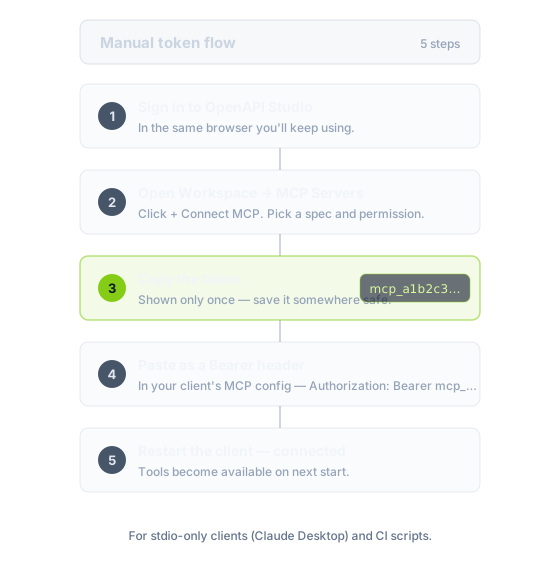
Some clients use stdio MCP transport and can’t perform OAuth in-browser — most notably Claude Desktop. For those, generate a token in the workspace and paste it into the client’s config as a Bearer header.
You can also use manual tokens for CI / scripts / shared machines where you don’t want an interactive browser flow.
Generate a token
- Open the workspace → MCP Servers.
- Click + Connect MCP (top right).
- Pick the spec, the permission (viewer or editor), and a name for the connection.
- Copy the
mcp_…token — it’s shown only once. If you lose it, revoke the old one and generate a new one.
The token now appears as a row in the MCP Servers list. Its detail page shows the connection config tabs (Claude Code / Claude Desktop / Cursor / Windsurf) with the Bearer header pre-filled.
Claude Desktop
Open the config file:
- macOS:
~/Library/Application Support/Claude/claude_desktop_config.json - Windows:
%APPDATA%\Claude\claude_desktop_config.json
Add an openapi-studio entry under mcpServers. The mcp-remote proxy bridges Claude Desktop’s stdio transport to our HTTP endpoint:
{
  "mcpServers": {
    "openapi-studio": {
      "command": "npx",
      "args": ["-y", "@anthropic-ai/mcp-remote", "https://openapistudio.app/api/mcp"],
      "env": { "MCP_HEADERS": "Authorization: Bearer mcp_YOUR_TOKEN" }
    }
  }
}
Quit Claude Desktop fully (Cmd+Q on macOS, system tray exit on Windows) and reopen it.
Claude Code with a manual token
If you don’t want to authorize in-browser, you can register a token directly:
claude mcp add openapi-studio \
  --transport http \
  https://openapistudio.app/api/mcp \
  --header "Authorization: Bearer mcp_YOUR_TOKEN"
Generic HTTP clients (Windsurf, Zed, Cline, OpenCode)
Any client that supports an HTTP MCP server with a Bearer header works. Use:
- URL:
https://openapistudio.app/api/mcp - Header:
Authorization: Bearer mcp_YOUR_TOKEN
Troubleshooting
OAuth browser window doesn’t open or returns an error Make sure you’re signed in to OpenAPI Studio in the same browser. If you’re on a corporate network that strips redirects, fall back to the manual token flow.
“Missing or invalid Authorization header” (manual token clients)
The Authorization: Bearer mcp_… header isn’t reaching the server. Re-check your client config — for Claude Desktop, the MCP_HEADERS line must be inside the env block.
“Invalid or expired MCP token” The token was revoked or the spec was deleted. Generate a new one (or re-authenticate via OAuth).
403 with a plan_limit message
The workspace owner’s plan no longer includes MCP. Upgrade the owner’s plan, or have a user on a qualifying plan re-authorize.
429 Rate limit exceeded
You hit either the per-5-minute or per-day ceiling for the workspace owner’s plan. Wait the retry-after seconds. To raise the limits, upgrade the owner’s plan.
The AI can’t see the run tool
You authorized at viewer level. Re-authorize as editor if you want live API calls. Viewer tokens only expose three tools (search, get, analyze).
Credentials aren’t applied to run
Make sure the workspace has a credential configured for a security scheme that exists in your spec’s components.securitySchemes. The scheme name must match. Cookie auth schemes are not auto-applied.